
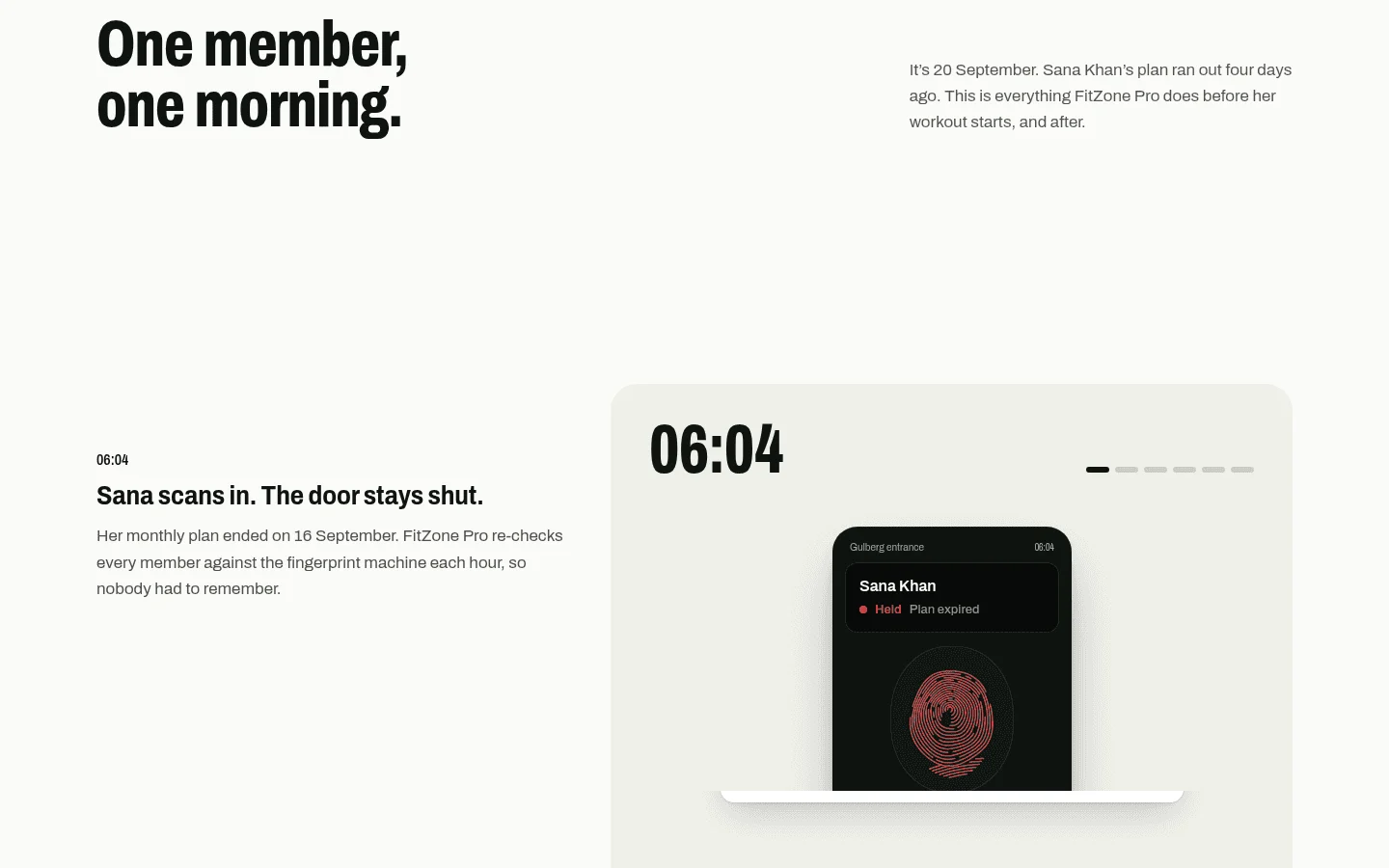
FitZone Pro is ZKTeco gym software for gyms in Pakistan. It links the ZKTeco fingerprint machine at your entrance to each member's record, so every scan lands next to the member's plan, payments and invoices. The front desk sees who came in, when, and where that member stands, on one screen instead of two.
Most gyms already own a ZKTeco machine and use it only to log attendance. The fee register sits somewhere else, so the desk has to remember who has paid. Connecting the two is the whole point of this page.
How the ZKTeco connection works
There are two ways to connect a ZKTeco machine to FitZone Pro, depending on the machine.
- With the FitZone Pro connector. A small program runs on a Windows computer at your gym. It starts with Windows, talks to the machine on your local network and reconnects by itself if the connection drops.
- Directly, over ADMS. Some ZKTeco machines can push their data to the cloud on their own (ZKTeco calls this ADMS). Those connect to FitZone Pro without the computer.
Either way, every scan arrives in FitZone Pro as it happens and appears on the Attendance screen with the member's name and the method used.
What the front desk sees
The point of ZKTeco gym software is that a scan means something more than a timestamp. In FitZone Pro:
- A member scans in and the visit appears on the Attendance screen straight away.
- The member's record shows their plan, its expiry date and any balance due, next to their visit history.
- Pending dues and expired plans are kept as two separate lists, so the desk can work through them during a quiet hour.
- When a member pays at the desk, the payment is recorded against a numbered invoice and the plan is renewed on the same record.
Nobody has to cross-check a printout from the machine against a fee register, because both are already in one place.
When the internet or the machine is down
Gyms in Pakistan lose power and internet, so plan for it. The desk can check people in by hand from the Attendance screen, and the scans the machine stored are synced as soon as it reconnects. Manual check-in is also there for the day the machine itself is out of action, and for guests and trial visitors who are not enrolled yet.
Fees and receipts in the same place
The scanner is only where FitZone Pro starts. Behind it:
- Fee collection. Pending dues and expired plans are two separate lists, each with a Renew button beside the member's name.
- Payments. Record cash, JazzCash, EasyPaisa or bank payments, each against an invoice with its own number, so the cash drawer and the book agree.
- Tax on invoices. Set your FBR, SRB, PRA, KPRA or BRA rate once and it is applied to invoices.
- Reports. Visits, collections, pending fees and plans about to expire, by day and by branch.
For the thinking behind linking attendance to fees, and the rules to agree before you act on it at the door, read linking biometric attendance to gym membership fees.
Several branches, several machines
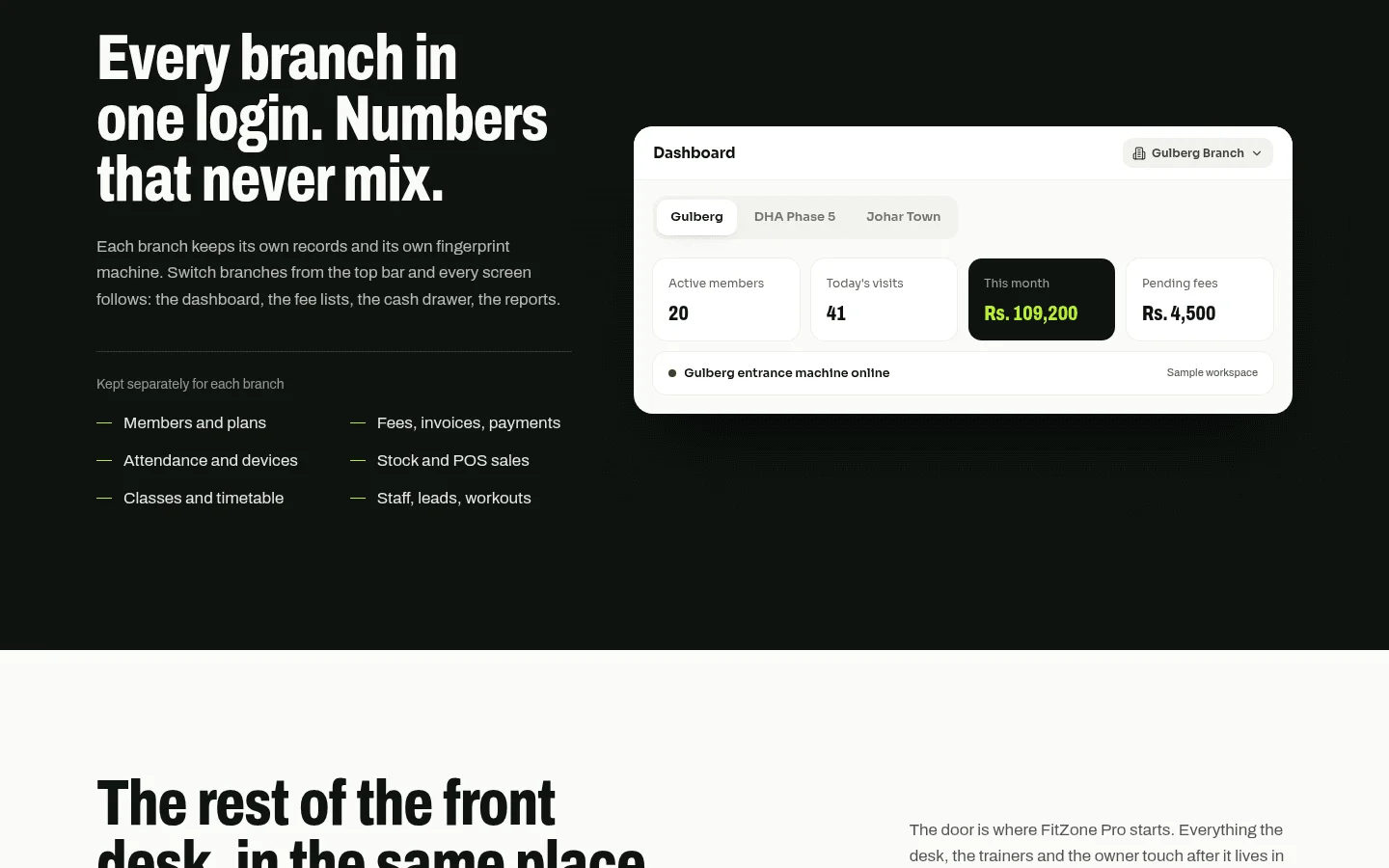
Each branch keeps its own fingerprint machine and its own members, fees, attendance, stock and staff records. One login covers all of them: pick a branch from the top bar and every screen follows. The owner can see visits, collections, pending fees and plans about to expire, branch by branch, from anywhere.
Before you connect: agree your door rules
The machine records who scanned and when. What your gym does with an expired member at the door is a policy decision, and it is worth writing down before you switch on any ZKTeco gym software:
- How many days of grace does a lapsed member get?
- Who at the desk may let someone in with dues outstanding, and is that logged?
- What happens to a frozen or paused membership?
- How do guests, trial visitors and personal trainers get in?
- Who tells a member that their plan is about to expire, and how?
Agree these with the owner and the desk staff first, then check during your trial how each one maps to FitZone Pro.
Setting up ZKTeco gym software
A typical setup takes an evening:
- Start the free trial. Your workspace, main branch and admin login are created straight away.
- Bring your members over from Excel or CSV. Rows that cannot be imported are listed in a file you can fix and upload again.
- Connect the machine: install the connector on the gym's Windows computer, or point an ADMS-capable machine at FitZone Pro.
- Enrol two test members, scan both, and check that each visit appears on the Attendance screen and on the member's record.
- Show the front desk the Attendance screen and manual check-in, so they know what to do if the internet goes down.
See the FitZone Pro overview for everything else the system does. If your office staff also clock in on a ZKTeco machine, the same device family can feed payroll. See ZKTeco attendance software for payroll in MatrixHR.